Searching regions and sequences
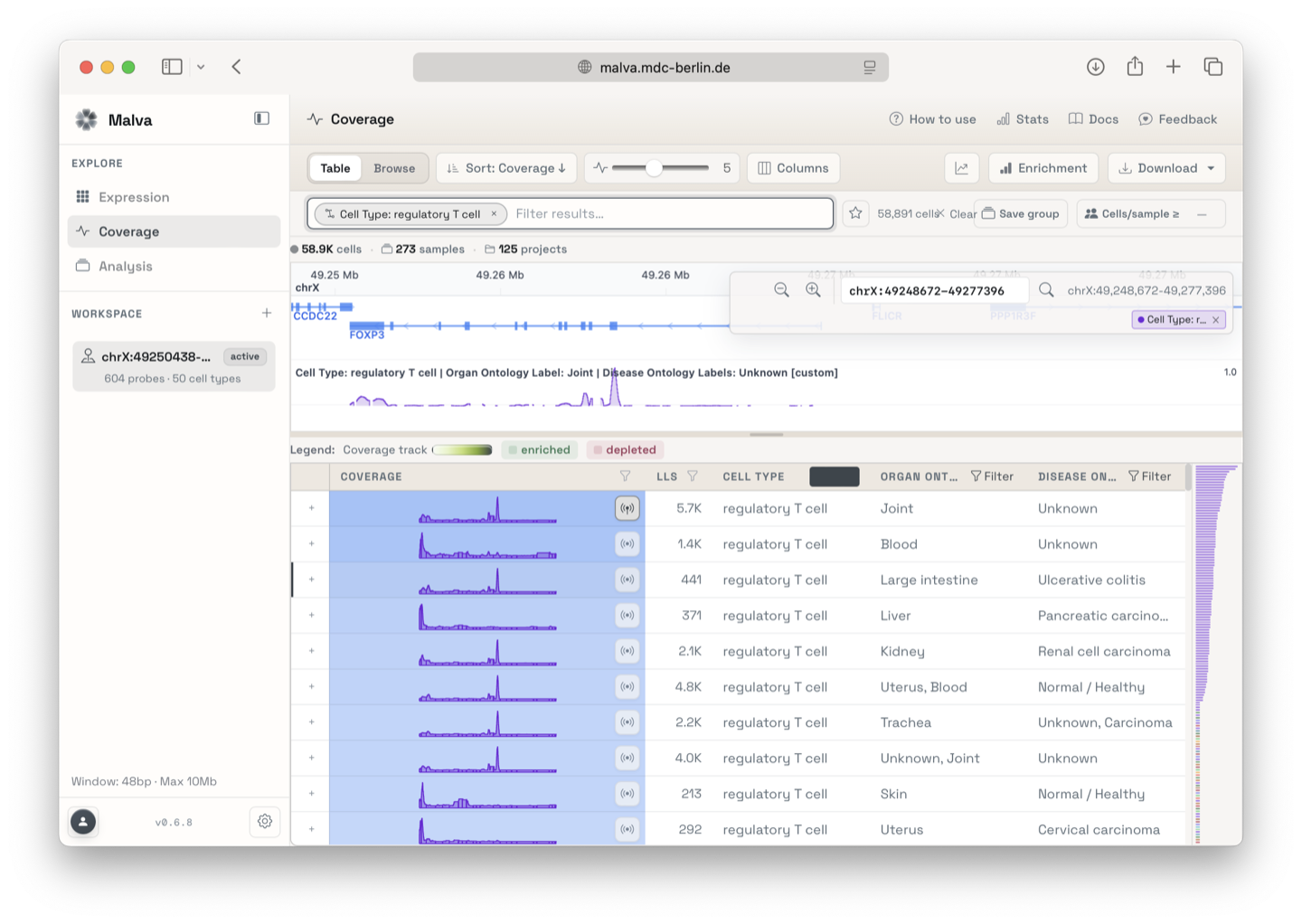
1. Open the Coverage Explorer
You can open the Coverage Explorer at https://malva.mdc-berlin.de/coverage
2. Enter a region or a sequence
Two input modes are available.
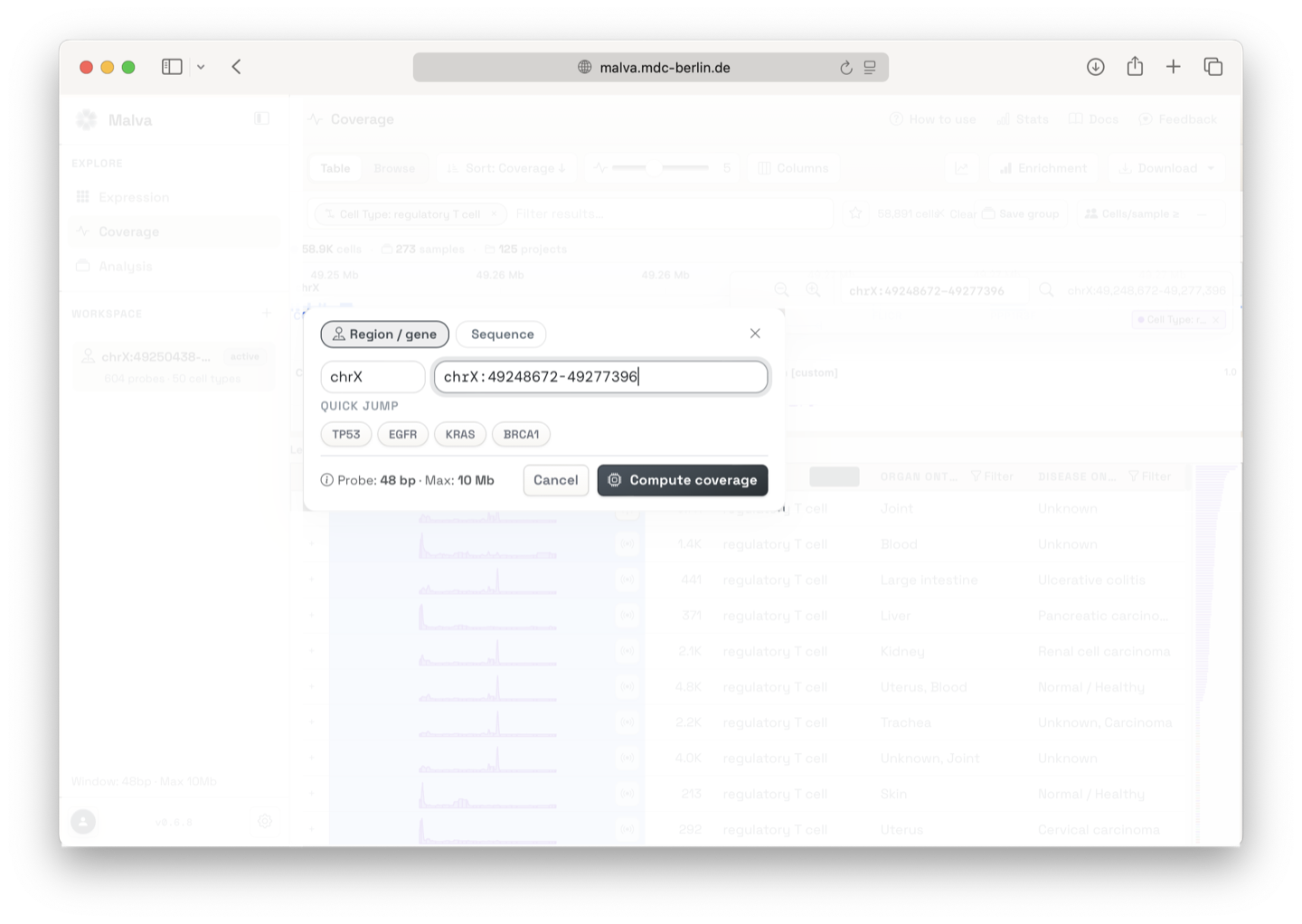
Search by genomic region
Type a locus in the search box, for example:
A region must be at least 48 base pairs and at most 10 megabases. A
gene lookup helper resolves a gene name to its genomic coordinates.
Type MYH7 and pick the matching locus from the suggestions.
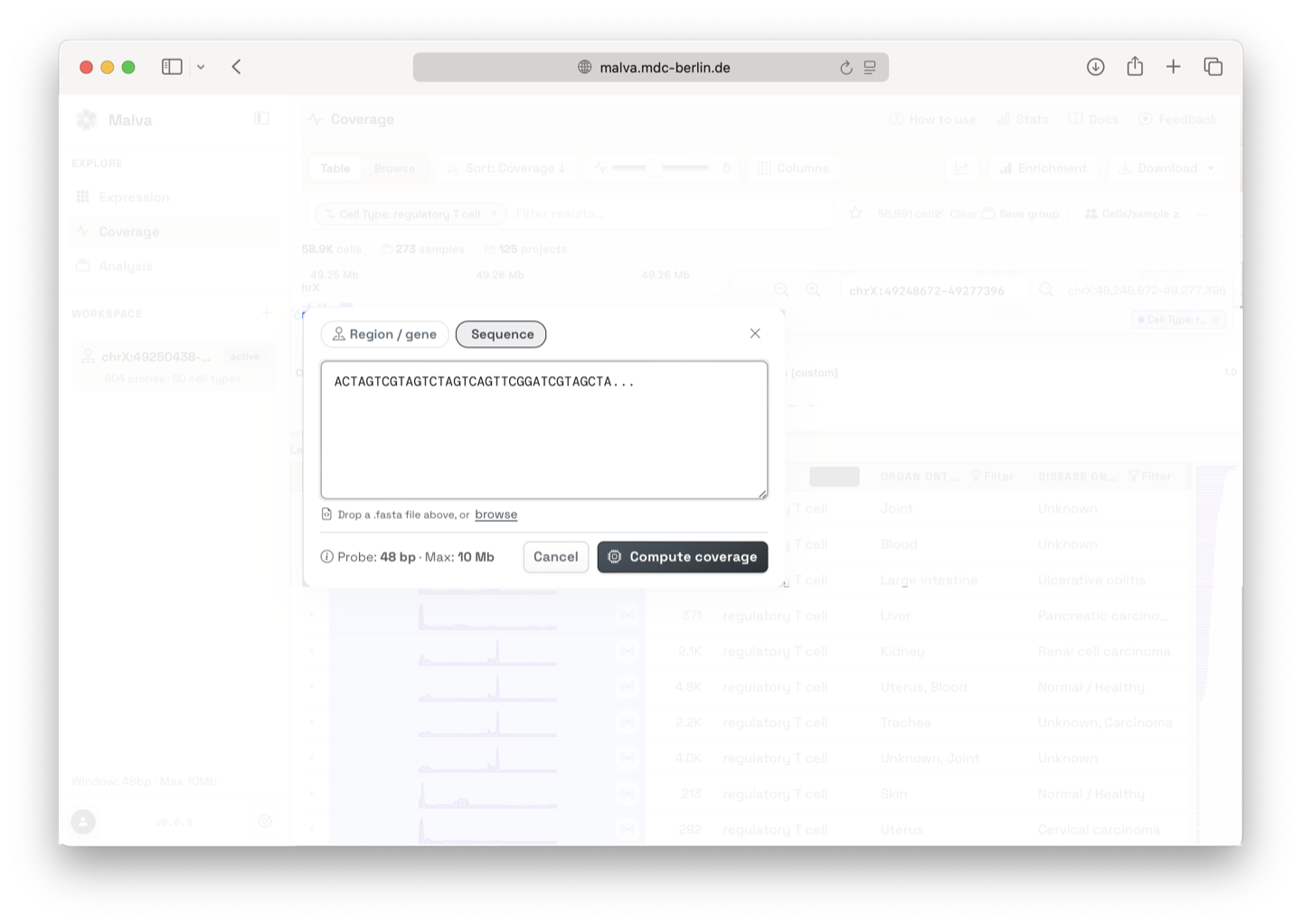
Search by sequence
Paste a DNA sequence directly, or drop a FASTA file. The sequence must be between 48 base pairs and 1 megabase, and may contain the bases A, C, G, T, and N. Malva maps the sequence onto the genome and searches for cells that cover it.
3. Submit and follow progress
Click Search. The coverage search runs asynchronously. Watch the progress in the sidebar, the same way as for an Expression search.
Coverage searches have no advanced options: they always search both strands of the DNA and always use the default k-mer count range. See How searching works for the details.
Submitting a search consumes one unit of your daily search quota, regardless of the size of the region or sequence.
4. Review the coverage table
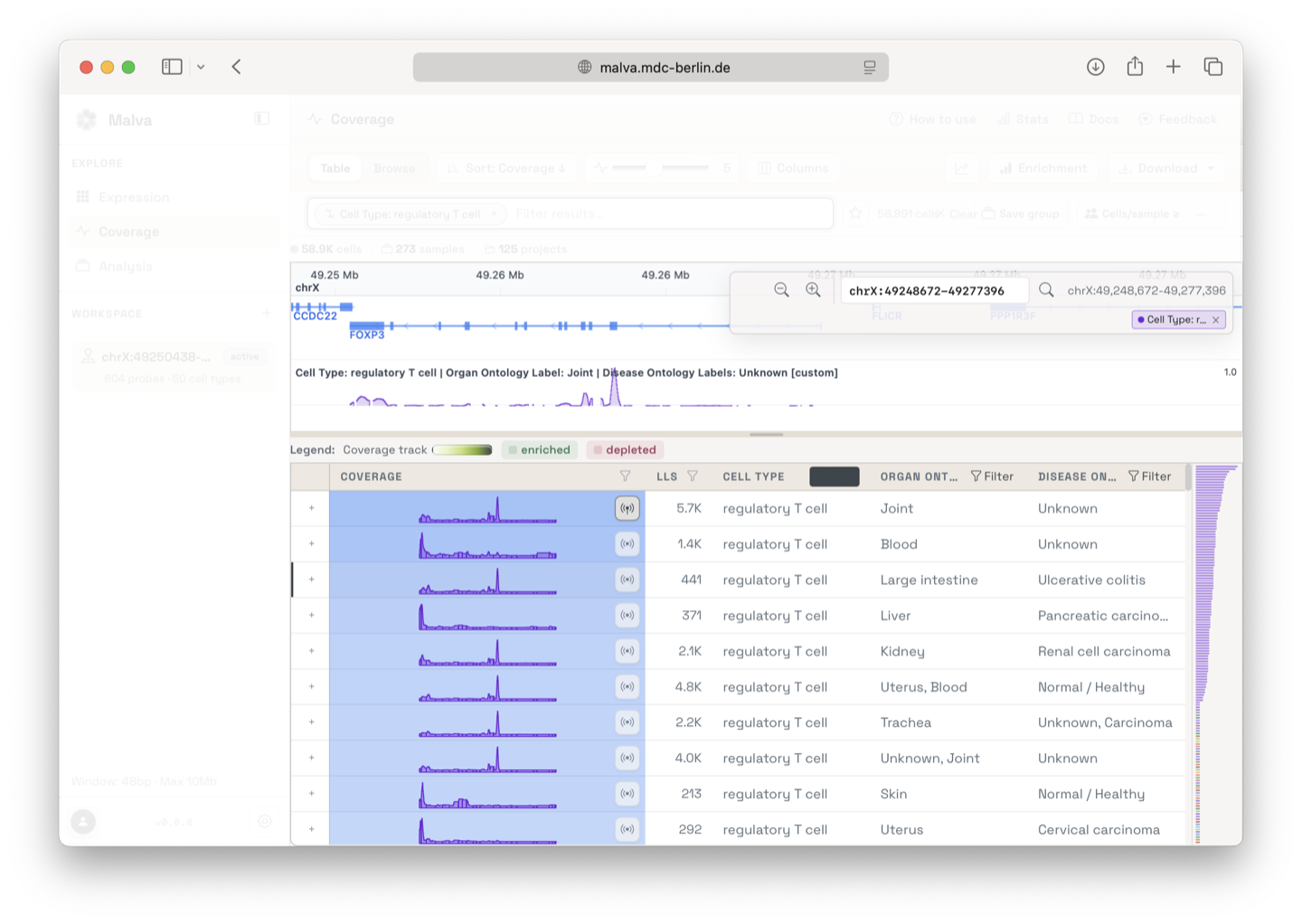
When the search completes, you get a coverage table. Each row is a group of cells defined by its metadata, in the same way as the Expression Explorer results table. Each row shows a coverage track, the cell count, and the metadata columns you have active.
From there, open the coverage browser on the next page, or save the rows as a group.