Running a search
This tutorial walks through your first Expression Explorer search.
1. Open the Expression Explorer
You can open the Expression Explorer at https://malva.mdc-berlin.de/expression
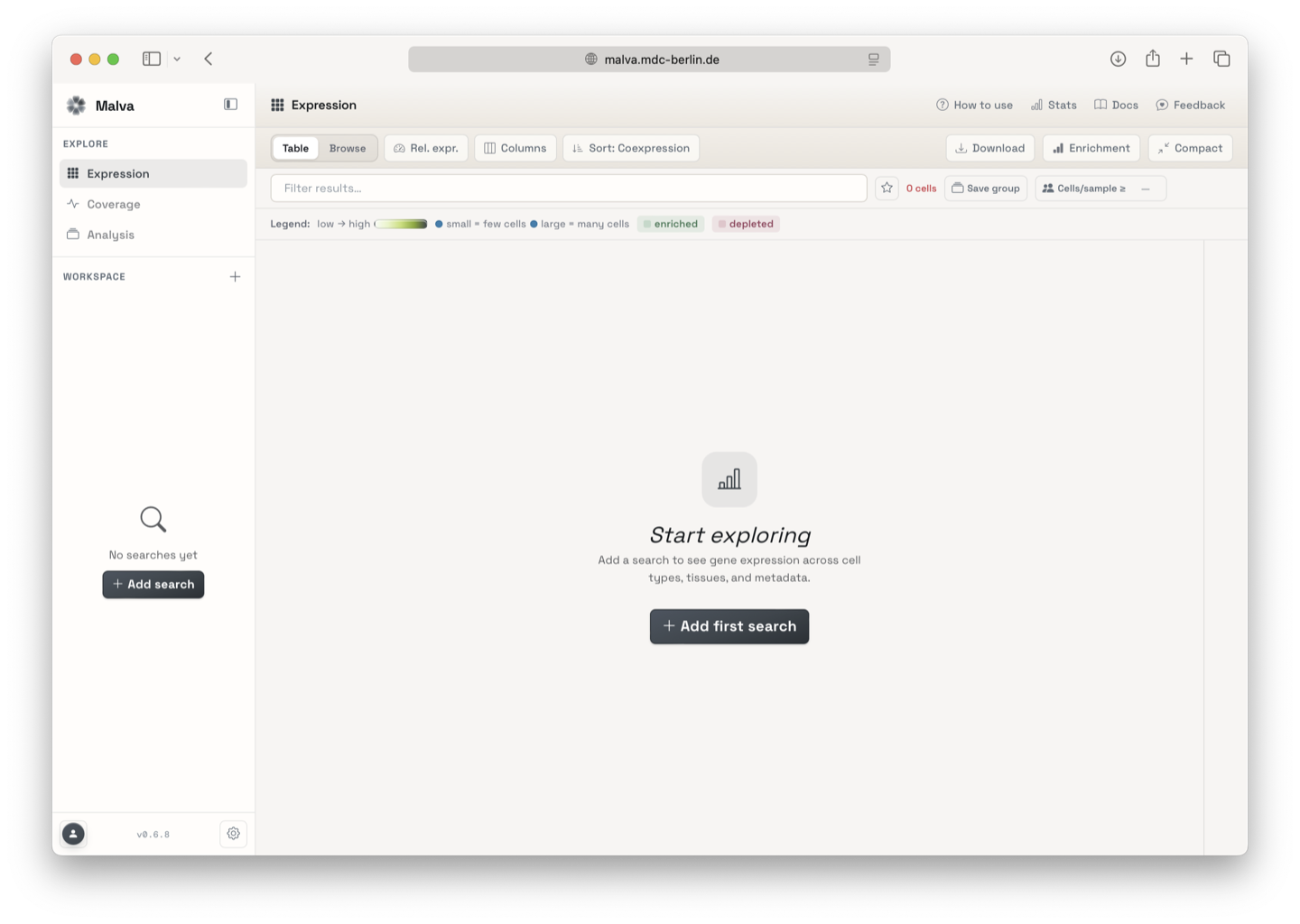
2. Enter your query
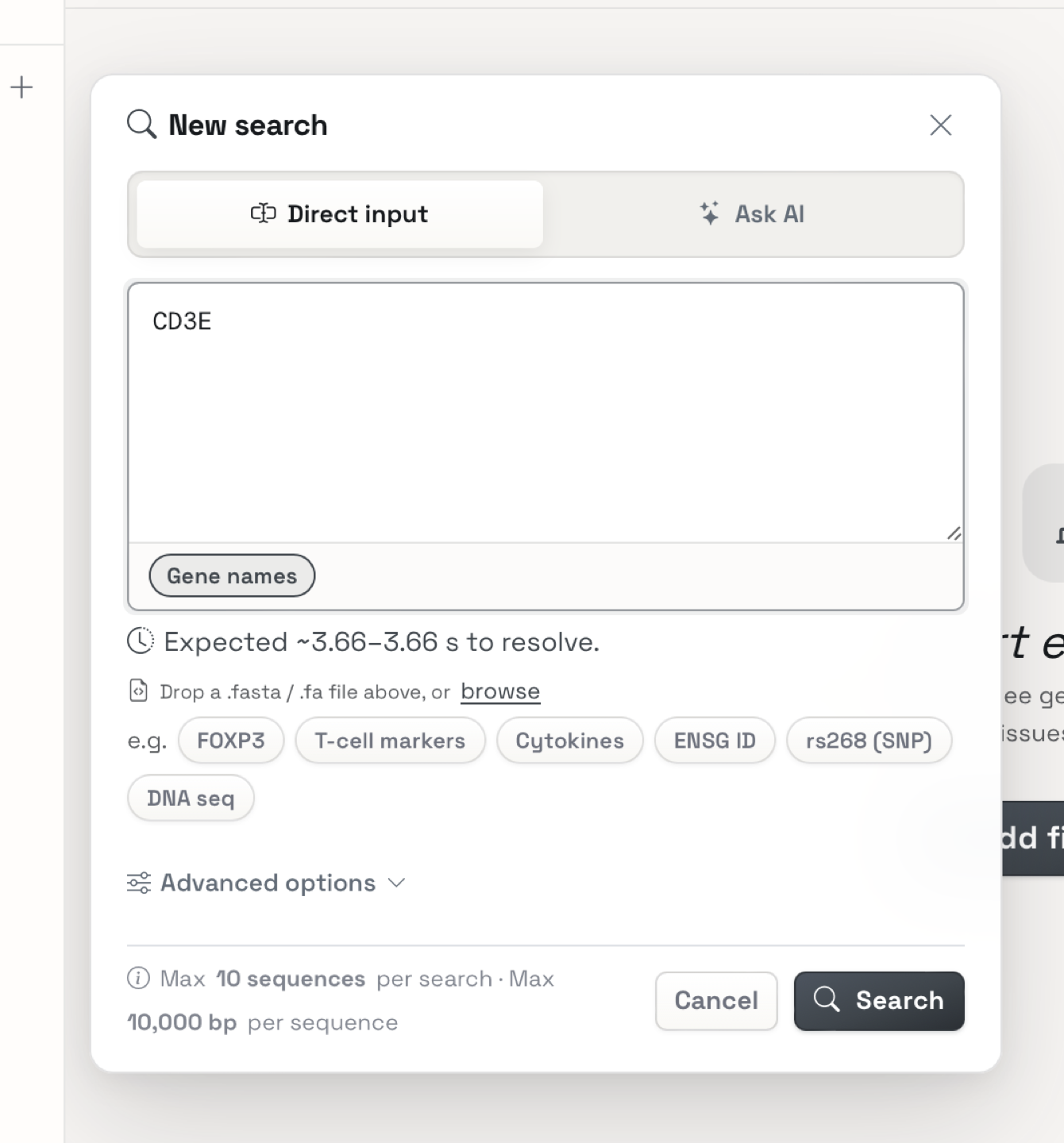
Type in the search box. You can use:
- Gene names, for example
CD3E,MS4A1, or several at once, such asCD3E MS4A1. - A sequence. Drag and drop a FASTA file onto the drop zone, or paste the sequence directly.
- A natural-language query, for example "endothelial cells in kidney". The optional Interpret assistant turns it into a structured search that you can review before submitting.
Multiple searches per job
Use Add search to keep several queries in one job and compare them. A job shows all its searches as cards in the sidebar. Each job can hold up to 10 sequences, up to 20 in total across your account, and each pasted sequence is limited to 10,000 bases.
3. Tune the advanced options
In the search drawer, Advanced options controls how strictly a sequence must match. Both settings apply to every search in the job.
- Min k-mer count and Max k-mer count (labelled cells / k-mer) keep only the cells whose k-mer count for a query sequence falls inside the range. Raise the minimum to focus on high-confidence hits, or lower the maximum to drop noisy cells. The defaults, 0 and 100,000, apply no filtering.
- Unstranded mode searches both strands of the DNA at once. Leave it off to search the given strand only.
See How searching works for the reasoning behind these options.
4. Submit and wait
Click Search. The search card shows a live progress bar with the current stage, for example searching or processing. Most searches finish in under a minute.
Submitting a search consumes one unit of your daily search quota, no matter how many genes or sequences the query contains.
5. Open the results
When the search completes, the result view opens automatically next to your query. Head over to Reading the results for what happens next.
Browse by metadata instead
If you are not sure what to search, use the Browse panel to navigate the metadata catalog by publication, organ, or study, and jump straight into a pre-filtered view.