Filtering samples
Instead of scrolling through every result, narrow the view by the metadata that matters to you.
On the Expression Table
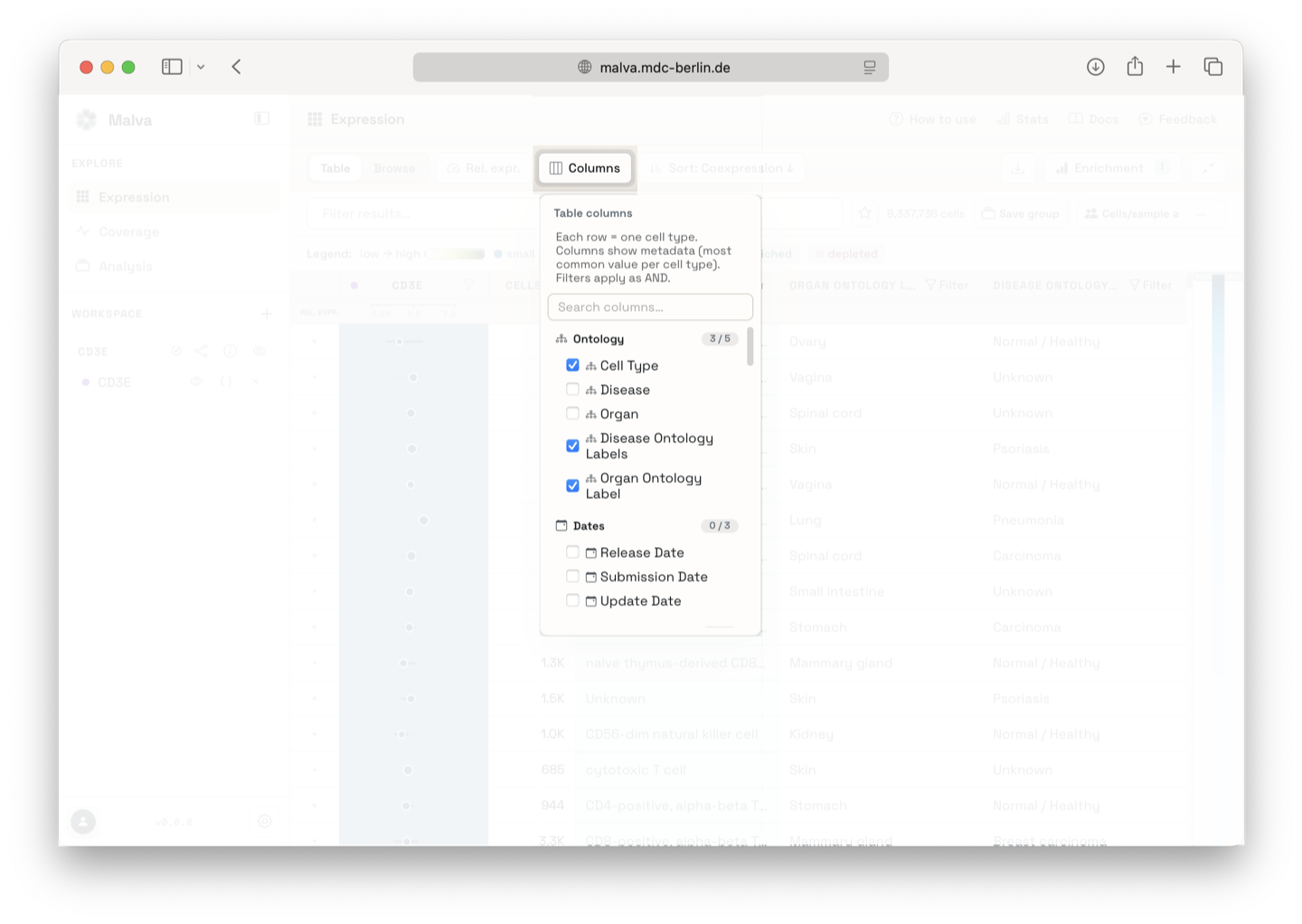
You can group the catalog by several metadata fields, like:
- Publication, the studies and their sample counts.
- Organ, the tissues annotated across the database.
- Study, the original submissions.
- Disease, cell type, and laboratory are also available.
Apply a filter
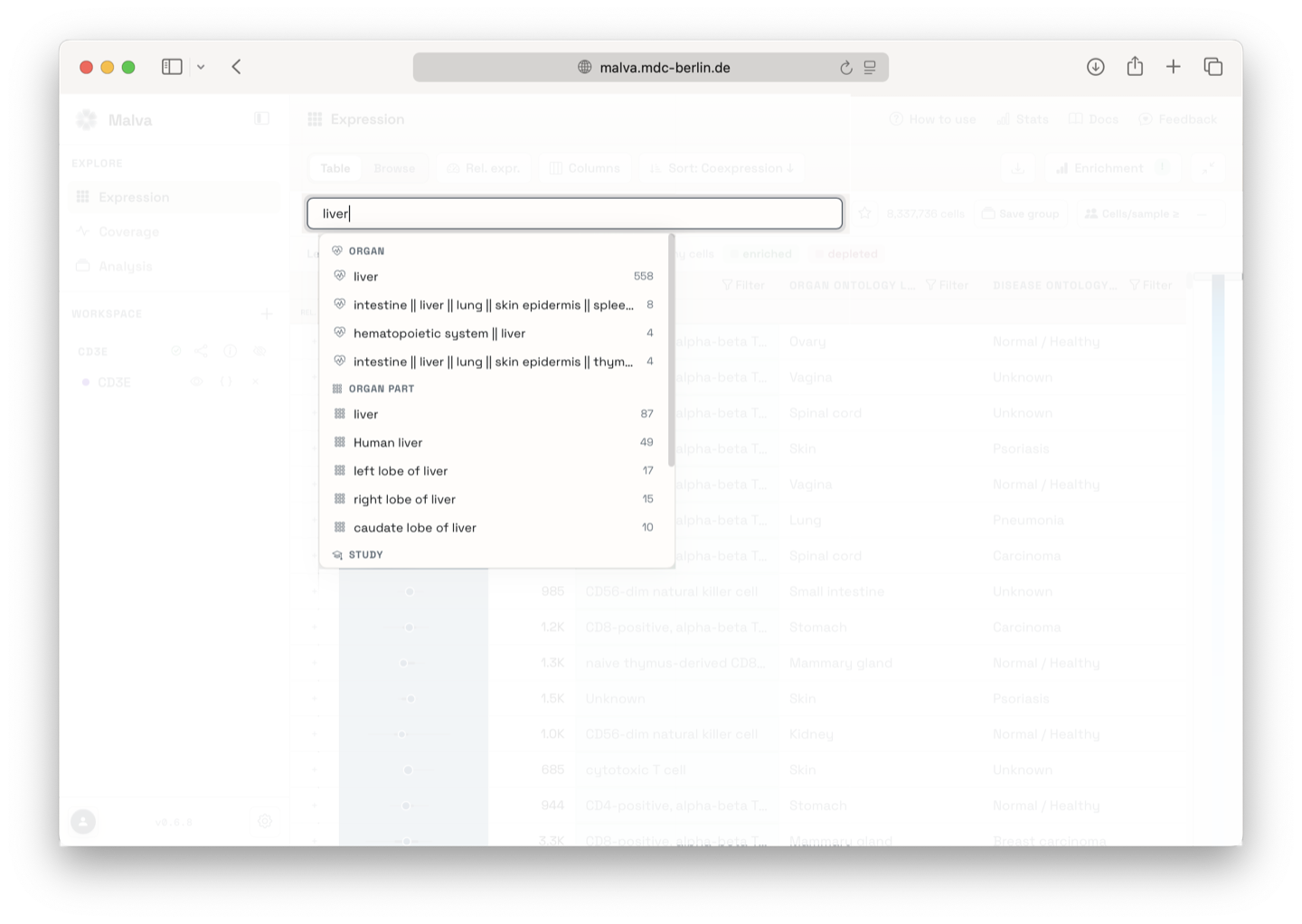
- Type a group, for example an organ, to see the values beneath it.
- Select the entries you want to keep.
- The results table updates to show only the samples you selected.
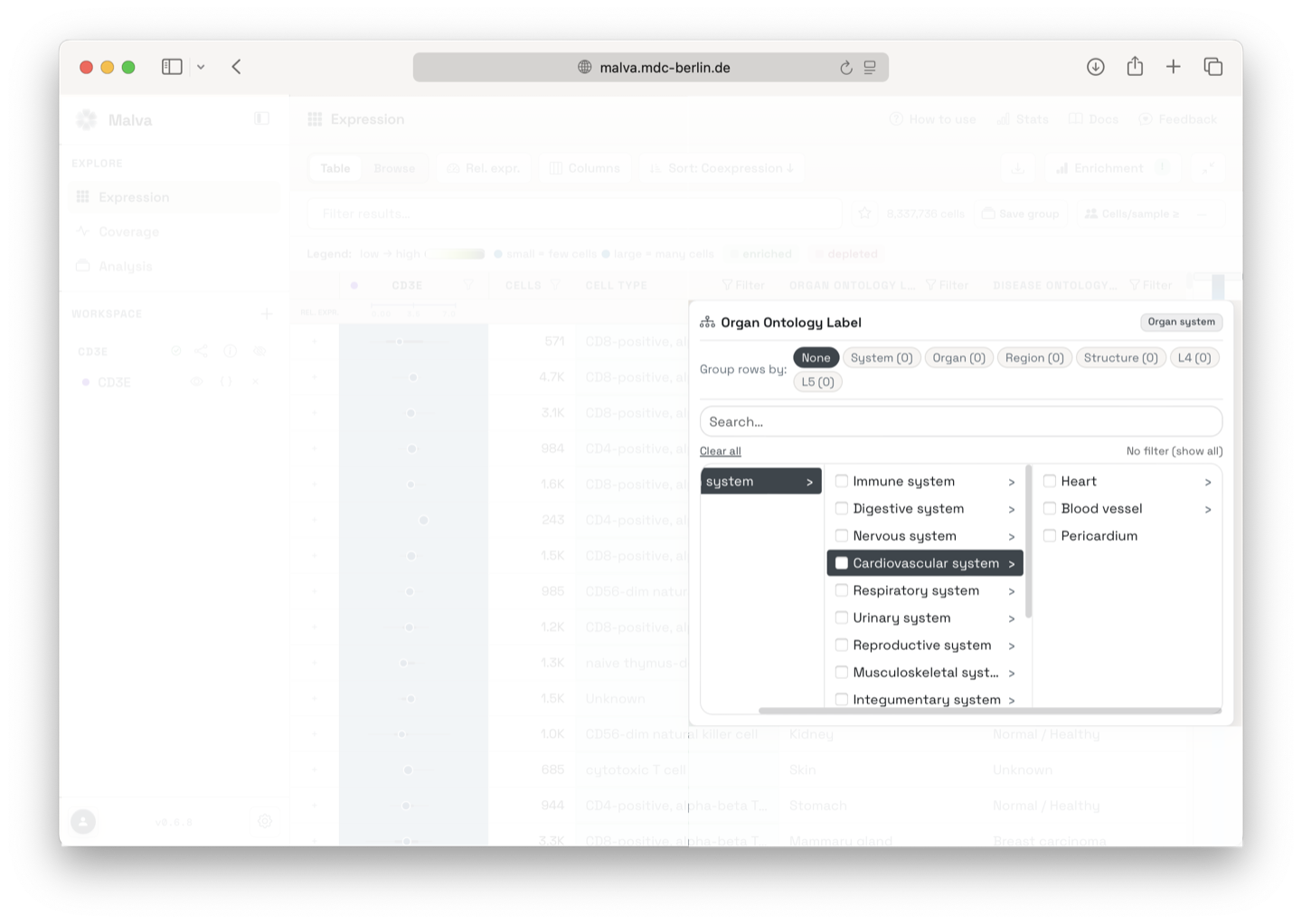
Several columns, like cell type, disease, and organ, are backed by ontologies. Their Filter buttons open an ontology browser instead of a plain list. Search for a term by name or synonym, browse the columns of terms, and select with the checkboxes. Selecting a term also selects its subtypes: choosing immune system under organ keeps every organ beneath it.
Search within filters
If the catalog is large, use the filter search bar to find a specific publication, organ, or disease without paging through the list.
See Ontologies for how terms are matched and how the ontologies are built.
Combine filters with the table
Selection state is shared. You can select rows in the results table and then refine by metadata, or the other way around. Malva keeps only the groups that match both. Use Select matching and Deselect all to work with large sets.
Filtering is free: it does not consume your search quota.